How to Find Prospect CRM Status in Pardot

Having trouble with finding out the CRM Status of Prospects in Pardot? No worries, Pardot Automation Rule here to the rescue. As known, Pardot comes with automation rules which allow you to perform certain marketing and sales actions based on criteria that you specify. It allows you to perform specific tasks to help you achieve your marketing goals. Automation rules make your job easier in a variety of ways like Lead qualification, assignment, task creation, assign to your sales representatives, applying tags, adding to campaigns, etc. Steps you need to follow: Note: This rule will filter on all prospects based on the status of the prospect’s synced CRM record. If you need help setting up the Automation, you can get in touch with us here. Request a Free Consultation YOU MIGHT ALSO LIKE
Assignment Rules In Salesforce
Assignment rules in Salesforce are basically used to automatically assign Case or Lead to the owner (Queue or User). This assignment rule is used to automate owner assignments on Lead and Case based on conditions on Case and Lead. Types of Assignment Rule There are two types of assignment rules. Lead Assignment Rule: The Lead Assignment rule describes how leads are assigned to queues or users as they are created manually, imported via the Data Import Wizard, or captured from the web. Case Assignment Rule: In Case Assignment rule, it specifies how cases are assigned to users or queues as they are created manually, using On-Demand Email-to-Case, Email-to-Case, Web-to-Case, the Customer Portal and Outlook. Create or Set-up assignment rules After this setup, click Save, or Save & New to save the entry and create more entries. Assignment Rule Example: Following is the Lead Assignment rule which assigns Lead to queues based on City, Company, and Industry. Like this, you can create more rules for assigning a different Queue/User for different criteria. Request a Free Consultation YOU MIGHT ALSO LIKE
Salesforce Latest Features – Highlight

Track Accounts as Campaign Members Previously you could only add Lead/Contact or Person accounts as campaign members in Salesforce but Now you can focus on the Accounts by tracking them as Campaign Members. This feature is generally available with summer 21 release. Add accounts as campaign members from related lists and create standard and custom reports to track their engagement. In order to add accounts as campaign members, Salesforce admin needs to turn on the feature in Salesforce Setup. Then update the accounts page layouts to include the Campaign History-related list on account records. Note: Accounts, including person accounts, that are added as campaign members also appear in Campaigns and Campaign Member related lists and standard reports. Share Records with Manual Sharing in Lightning Experience With the latest release of Salesforce Manual sharing is available in the lighting experience. Previously, you had to switch to the classic interface to share the record manually to specific users or groups. But, with manual sharing in Lightning Experience, you now can share records and manage record shares in a new streamlined interface. Steps: Note: Manual shares are available only for accounts, opportunities, cases, contacts, leads, and custom objects. Refer to the Prior Values of the Record in Salesforce Flows Previously, there was no way to check the prior values of the record that triggered your flow. But, now when a record is updated, you can access that record’s prior values in Salesforce Flow. The $Record__Prior global variable contains the record’s values immediately before the flow was run. Use these prior values to check for changes and calculate differences in your flow. For example to notify your deal team when the deal’s amount changes by 50% or more. Here, you need to compare the current value of the amount to the prior value of the amount in order to calculate the percentage change. So you can create a formula such as ({$!Record.Amount} – {!$Record__Prior.Amount}) / {!Record__Prior.Amount}. By using a Decision element to check the formula’s result and a Send Email action to perform the notification. $Record__Prior global variable can be used in record-triggered flows that are set to trigger either when the record is updated or when the record is created or updated. $Record__Prior is available in specific Flow Builder locations that read from global variables, including: Request a Free Consultation YOU MIGHT ALSO LIKE
How to create a new record with field input by using Salesforce Flows
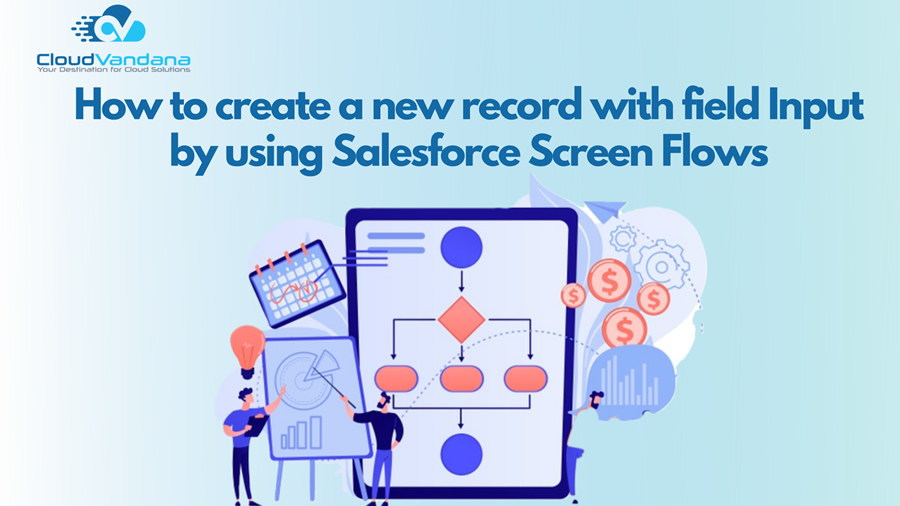
As we all know that Salesforce has introduced us to many automation tools which automate our business processes with Process Builder, Workflow, Approvals, and Flows. In Salesforce functionality, every tool comes with its own specification and features. “Flow”, is one of the types of Automation tools in Salesforce. Flow is a tool that automates complex business processes. Basically, it is the declarative interface used to create different types of flows. Previously, we used the Process Builder to automate any business process but as the flow has defined its additional features so it supports mostly all same functions. Example:- Let’s take a simple example of flows – Creating a new Lead with four field input form that we will later add to our Home page. Step 1. Quick Lead (build with Flow Builder) Step 2: Step 3. Step 4. Step 5. Step 6. Step 7. Step 8. Step 9. Step 10. Step 11. Step 12.Add Your Flow to the Home Page Step 13. Test your new flow by entering a new lead via the Flow you have just created. Request a Free Consultation YOU MIGHT ALSO LIKE
Setup Email Sending Domains in Pardot
Learn the best practices and tips for setting up email sending domains in Pardot with this comprehensive guide. Ensure your emails reach the inbox every time! Before sending emails through Pardot, add the Email Sending Domain in Pardot. In Pardot, the email addresses of your users will determine which domain is used when sending emails. For example, if you send a Pardot email and choose user@yourcompany.com as the sender email, yourcompany.com is the domain that would be used. That is the domain that will need to be configured in Pardot, and Pardot will provide you DNS entries, and these DNS entries will need to be placed in your DNS. If your users have different domains, each one that will be used will need to be configured. The Email Sending Domain involves 3 separate DNS entries: Add SPF and DKIM Records to Your DNS Domain: info.yourwebsite.com Have your IT team add TXT records for SPF and DKIM to your sending domain’s DNS record. 1. Add Pardot’s SPF statement to your SPF record. Here you can check the screenshot. Here you can check the screenshot. If you need help setting up the Email Sending Domain, you can get in touch with us here. Request a Free Consultation YOU MIGHT ALSO LIKE
3 Ways to Use Pardot Automation Rules
As known, Pardot comes with automation rules that allow you to perform certain marketing and sales actions based on criteria that you specify. These rules allow you to perform specific tasks to help you achieve your marketing goals. Automation rules make your job easier in various ways, like Lead qualification, assignment, task creation, assigning to your sales representatives, applying tags, adding to campaigns, etc. Today, I am going to share with you 3 ways to use automation that might help you understand the power of Pardot Automation. Pardot Automation Rules 1. IMPROVE YOUR LEAD QUALIFICATION MODEL “Automation rules are a powerful way to customize your scoring and grading models. Consider customizing your global, baseline scoring rules, while using automation rules as an additional layer of measuring and responding to customer engagement and intent. You might look at prospects who meet a certain scoring threshold in addition to specific, tracked activities to do things like: 2. CUSTOMIZE AUTORESPONDER EMAILS Autoresponder Emails are emails that are triggered automatically whenever the prospect engages with your marketing assets. “Increase personalization and content engagement by sending custom autoresponder emails to prospects who complete forms. Automation rules can be configured to assess field criteria in combination with form submission data to push specific autoresponder emails to prospects who complete forms.” Autoresponder emails can be used: 3. WELCOME SERIES FOR NEWLY PROSPECTS “When new prospects are created, you could create an automation rule that adds them to a list that feeds a Welcome Series Engagement Program.” For example, when a prospect signs up for a blog newsletter, the action of signing up triggers a welcome email, and after that, you can start a journey program with them. Follow these steps to create a Welcome Journey program for new prospects. Step 1, add a competition action on form, choose action add to List, and select a list for the subscriber which you want to add after fill-up the form. Here you can check the Screenshot of Completion Action Note, this process will add prospects to the list when they fill-up the form. Step 2, Now, create an Engagement Program and select that list as a Recipient list in the program. Note: Here you can check the screenshot of the Welcome Journey Program Note: You can add as many actions, triggers, and rules in your program as per your needs. If you need help setting up the Automation, you can get in touch with us here. Request a Free Consultation YOU MIGHT ALSO LIKE
Best Practices for 5 Types of Email Templates
E your email game with expert guidance on crafting effective templates for various purposes. From captivating subject lines to persuasive content, learn how to create emails that resonate with your audience and drive results. As known, Pardot makes it easier for B2B marketers to send personalized emails to their customers. But that doesn’t mean marketers used one type of email to approach when they were planning to send emails to their customers. First, make sure which type of email you are going to send to your customer like the emails should be related to the customer’s interest in your products/services. If you’re looking for some guidelines when it comes to email design, or worried about which style of email performs best for certain types of messages, check out a few of the email examples below. 1. EVENT EMAIL Are you going to launch an event for your product or service? No worries, then the Event Email is the best solution for you. But you should follow some trick to make your email attractive,your email should be informative and important information should be at the top, always include your company logo, add call to action, and key points that you’d like readers to take away from your email like event name, date, and time information). By using Pardot you can add more features in your email like, countdown timers, promo videos. This gives you a chance to be more creating excitement around your event. 2. WEBINAR FOLLOW-UP EMAIL Follow-up emails — when you want to increase your engagement with those audiences who have attended your webinar then follow-up emails are the best solutions for you. Based on their past actions, you have a picture of what type of content and resource they are interested in. so you can use this technique to follow-up with the audience to provide them with the related articles, informative blogs, e-books, or other important information. Tip: If you know your readers’ interests, send them content that’s specifically related to those interests. Don’t just send a thank you email — add value by including additional content that your recipients might find useful based on the recipient’s past actions 3. TRAINING EVENTS EMAIL Do you have several upcoming events that you want to share with your audience? then use an email template that provides the exact information your clients, customers, and prospects are looking for — don’t make your content lengthy, intimidating, and difficult to read. Focus on creating a design that is simple, appealing, and easy to read. also, don’t forget your mobile audience. Make sure your template is well-optimized for mobile devices, and use CTAs that are prominent, clear, and easy to work on a mobile device. In today’s day and age, your readers are often just going to be skimming your emails for important, relevant points. Calls to action need to stand out and should be emphasized by either color, placement, size, or a border. 4. FEEDBACK EMAIL When you want to gather qualitative opinions from customers after attending an event, buying a product, using the service then Feedback emails are the solutions for you. It contributes to building customer loyalty and helps marketers gather valuable insights and use them to improve the product. Use a template that breaks content into easy-to-read sections and drives attention to your calls-to-action. Make sure CTAs are clear and direct, such as “Take the survey” or “Leave a review.” Feedback emails should make it easy for your customers to engage with you in the way they most prefer. So don’t forget to include a “Contact us” option and social media links. The “Contact Us” section and social share buttons are often neglected during email template design. It’s important that your email recipients can contact you with any questions or comments. Missing either of these elements can hinder communication between your clients and company, your clients and potential clients, or your prospects and company (depending on the type of email). 5. NURTURE JOURNEY EMAIL The best way to create a relationship between your product/services and your consumers is the Lead Nurturing Process. It will help you to give you a proper idea of whether the lead is interested in your product or not. always focus on providing value to your reader. This is where the powerful personalization capabilities of marketing automation really take the stage. Tailor the content you send based on their individual interests and past behaviors. And keep individual emails limited to the most important content your audience wants to see and read. You can always link them out to more resources. If you are sending emails to prospects who are in the early stages of the buying cycle, keep your content light and educational. Focus on thought leadership articles and blog posts instead of promoting late-stage sales collateral like buyers guides, white papers, and recorded webinars. Finally, make sure to optimize your send times, so your emails are hitting your reader’s inbox at the right moment. If you need help setting up the Pardot, you can get in touch with us here. Request a Free Consultation YOU MIGHT ALSO LIKE
Use Einstein Bots to Support Your Customers

Salesforce gives you intelligence with the help of Einstein Bots to support your customers effectively and efficiently. Build and manage Einstein Bots to ease the load on your service agents. Bots can handle routine requests and free your agents to handle more complex issues. Bots can also gather pre-chat information to save your agents time. What is Bots? You can use Einstein Bot Wizard to create an Einstein Bot To get more details on Einstein Bots and its setup, Please visit Salesforce help article here Request a Free Consultation YOU MIGHT ALSO LIKE
Bring Intelligence To Sales With Einstein Lead Scoring

Use artificial intelligence to score your leads by how well they fit your company’s successful conversion patterns. Give your sales team access to scores that help them prioritize leads. Turn on Einstein Lead Scoring, and then decide which conversion milestone to use and if you want Einstein to omit any leads or ignore any fields. Einstein analyzes your past leads, including any custom fields, to determine which current leads have the most in common with leads that have previously converted. By default, Einstein scores your leads using all lead fields. If your admin is certain a field doesn’t affect lead quality, they can tell Einstein to ignore the field. Based on its data analysis, Einstein creates a predictive model for your organization. Einstein reanalyzes your lead data every 10 days and refreshes your scores. So if new trends emerge, Einstein won’t miss them. The lead score appears in the Einstein Score component on lead detail pages. The component also shows sales reps which of the lead’s fields had the greatest influence on its score (1). Depending on the lead, fields with positive or negative influences can appear. Fields that aren’t listed in the Einstein Score component still influence the score, but less than the fields listed. When you or your users add the Einstein Score field to list views, hovering over a score (1) displays the top factors (2) behind the score. When sales reps focus on leads with higher scores, they’re likely to convert more of them to opportunities. The lock (3) indicates that the score is read-only. Request a Free Consultation YOU MIGHT ALSO LIKE
Support Your Customers With Web-To-Case

Gather customer support requests directly from your company’s website and automatically generate new cases with Web-to-Case. This can help your organization respond to customers faster, improving your support team’s productivity. How to setup? Setting up Web-to-Case involves enabling the feature, choosing settings, and adding the Web-to-Case form to your website.For more information on setup please check the Salesforce Help Article here Request a Free Consultation YOU MIGHT ALSO LIKE