The Importance of Filtering Knowledge Reports by Category

In the ever-evolving enterprise landscape, knowledge is currency—but only when it’s discoverable, measurable, and actionable. With thousands of articles spanning products, regions, services, and more, the ability to report effectively on knowledge assets has become non-negotiable. And yet, traditional reporting approaches often fall flat when faced with complex taxonomies. That’s where category filters step in—not just as a convenience, but as a structural upgrade to how you measure and manage knowledge effectiveness. In this article, we’ll dive deep into how to filter Knowledge reports by category, transform content governance, analytics, and stakeholder insights. Table of Contents Understanding Knowledge Categories in Salesforce The Role of Categories in Knowledge Management Native Reporting Gaps in Salesforce Knowledge Introducing Category Filters in Knowledge Reports Operators That Power Category Filters The ‘at’ Operator The ‘above’ Operator The ‘below’ Operator The ‘above or below’ Operator How to Add a Category Filter in Salesforce Knowledge Reports Business Use Case #1: Regional Knowledge Insights Business Use Case #2: Product Support Performance Business Use Case #3: Knowledge Reports Effectiveness by Issue Type Benefits of Filtering by Category The Difference Between Field Filters vs Category Filters Best Practices for Category-Based Reporting Admin Governance Considerations How to Train Users on Category Filters Limitations to Be Aware Of Planning for Future Scalability The Role of Category Filtering in Customer Experience Einstein and the Road Ahead for Knowledge Reports Frequently Asked Questions Conclusion: Strategic Visibility Through Category Intelligence YOU MIGHT ALSO LIKE Understanding Knowledge Categories in Salesforce Salesforce Knowledge Reports enables administrators to organize articles using Data Category Groups—which behave like structured hierarchies of topics. These categories allow content to be classified at multiple levels, from high-level domains to granular topics. Unlike tags, which are flat and non-hierarchical, categories establish relationships between nodes. A subcategory inherits context from its parent, enabling structured filtering and navigation. The Role of Categories in Knowledge Management Categories aren’t just for organization—they’re pivotal for permissioning, targeting, and search accuracy. A well-maintained data category model ensures that agents, customers, and partners are seeing only what’s relevant to them. More importantly, categories enable reports to be segmented by logic that reflects how the business actually functions. Marketing may care about products. Support may care about issues. Regional teams may care about geography. Without categories, your Knowledge base is just a content swamp. Native Reporting Gaps in Salesforce Knowledge Before the introduction of category filters, Salesforce admins had to rely on: These approaches were brittle, hard to scale, and often returned imprecise data. Reports lacked the ability to sweep through category trees, which meant either underreporting or overreporting—neither of which serves decision-makers. Introducing Category Filters in Knowledge Reports Salesforce introduced Category Filters specifically to bridge this gap. These filters operate natively on Knowledge articles and support four powerful operators to capture hierarchical logic. What used to take multiple custom filters and complex logic can now be configured with a single intuitive filter block. From executives seeking global content coverage to regional leads analyzing local documentation, category filters bring structure to insight. Operators That Power Category Filters The ‘at’ Operator Use this when you want exact match precision. For example, a report filtered “at California” will only return articles explicitly tagged to California—not its cities or parent country. The ‘above’ Operator Ideal for high-level reporting. “Above Arizona” could return articles tagged to the United States, North America, or Global—but excludes Arizona itself. The ‘below’ Operator This is your go-to for drill-down analysis. “Below California” gives you San Diego, San Francisco, and all city-level tags—perfect for regional managers. The ‘above or below’ Operator Use this to see the full picture. “Above or below Mexico City” gives you city-level, country-level, and even region-level documentation for complete context. How to Add a Category Filter in Salesforce Knowledge Reports It’s that simple—and incredibly powerful. Business Use Case #1: Regional Knowledge Insights A support operations leader in EMEA wants to see how Knowledge Reports articles are being used across Germany and its subregions. They apply a filter on Region, set operator to below, and input Germany. The report now surfaces everything from Berlin to Munich, plus Germany-wide articles—giving the team a targeted lens on local effectiveness. Business Use Case #2: Product Support Performance The Product Success team needs insights into documentation for the Smartphone Accessories product line. They select the Product Line category, apply the operator above or below, and input “Accessories.” Now they can analyze support content for accessories, related products, and parent categories—identifying weak spots or high-value assets. Business Use Case #3: Knowledge Reports Effectiveness by Issue Type The Knowledge Manager filters by the category Issue Type, selects at, and inputs “Login Errors.” This provides a laser-focused report on content handling that one issue—crucial for compliance, customer experience analysis, and knowledge tuning. Benefits of Filtering by Category Speed of Access: Stakeholders can instantly view segmented data without modifying the base report or rebuilding logic. Contextual Accuracy: Because categories mirror business logic, the insights reflect reality—not arbitrary groupings. Noise Reduction: With fewer irrelevant results, reports are cleaner, clearer, and more actionable. The Difference Between Field Filters vs Category Filters Field filters are static—they don’t understand the structure of your content. Category filters, by contrast, understand hierarchy. For example, filtering by Product Line “Laptops” gives you nested article types without any custom logic. Use fields when filtering by date, owner, or status. Use categories when filtering by topic, hierarchy, or taxonomy. Best Practices for Category-Based Reporting Maintain logical and clean hierarchies. Avoid duplicating concepts across different branches. Use naming conventions that match user expectations. Group reports in folders like “By Product,” “By Region,” or “By Issue Type.” And always, always document your filters and logic for cross-team clarity. Admin Governance Considerations Admins must ensure category groups are published to the right users. They should regularly audit who sees what. And they must train teams to apply filters responsibly, especially when distributing dashboards or shared reports. This is a high-leverage reporting tool—and with that comes the need for governance. How to Train Users on Category Filters Run demos. Record
Add Dynamic Values to Dashboard Text Without Code – Einstein Analytics
Learn how to add dynamic values to text in Einstein Analytics dashboards without using code. Boost clarity, personalization, and storytelling with this complete guide from CloudVandana. Modern business users don’t just want dashboards—they demand smart dashboards. Dashboards that don’t just display static metrics but evolve in real-time, respond to filters, and surface insights dynamically. In the Salesforce ecosystem, Einstein Analytics (now part of CRM Analytics) enables precisely that. One of the most underutilized yet powerful features of Einstein Analytics is the ability to add dynamic values to dashboard text—without writing any code. This guide explores how to deliver personalized, context-aware dashboard text using declarative tools in Einstein Analytics. Whether you’re building an executive summary dashboard or a sales performance tracker, mastering this technique will drastically elevate the clarity and storytelling power of your dashboards. Table of Contents 1. What Is Einstein Analytics? 2. The Role of Text Widgets in Dashboards 3. Why Dynamic Text Matters 4. Dynamic Text vs. Static Text: Key Differences 5. Traditional Methods: Code-Based Binding 6. The No-Code Approach: Binding Made Declarative 7. Prerequisites Before You Begin 8. Step-by-Step: Add Dynamic Text Without Code Step 1: Open Dashboard in Edit Mode Step 2: Drag a Text Widget Step 3: Insert Text with Dynamic Variables Step 4: Apply Filters (Optional) Step 5: Preview and Save 9. Supported Data Types and Bindings 10. Using Filters to Drive Dynamic Text 11. Real-World Use Case: Sales Summary by Quarter 12. Use Case: Executive Overview with KPI Highlights 13. Use Case: Role-Based Messaging in Embedded Dashboards 14. Tips for Cleaner Visual Communication 15. Common Pitfalls and How to Avoid Them 16. How This Enhances Data Literacy Across Teams 17. Using Dynamic Text in Lightning App Pages 18. Maintaining Performance While Using Bindings 19. Limitations to Be Aware Of 20. Future of Declarative Dashboard Building in Salesforce FAQs Final Thoughts and How CloudVandana Can Help YOU MIGHT ALSO LIKE 1. What Is Einstein Analytics? Einstein Analytics—now known as CRM Analytics—is Salesforce’s advanced analytics and business intelligence platform. It goes beyond traditional reports by offering customizable dashboards, machine learning-powered predictions, and highly visual data storytelling tools. 2. The Role of Text Widgets in Dashboards In any dashboard, text widgets are crucial for context. Whether you’re highlighting a top performer, displaying a date range, or calling out anomalies, the text element is how you communicate meaning—not just metrics. 3. Why Dynamic Text Matters Static text is fine when nothing changes. But in real-world scenarios: Dynamic text ensures the dashboard narrative adapts in real-time—adding clarity, personalization, and interactivity. 4. Dynamic Text vs. Static Text: Key Differences Feature Static Text Dynamic Text Updates with filters ❌ ✅ Custom per user ❌ ✅ Needs code ❌ ❌ (declarative possible) Drives engagement 🚫 ✅ Dynamic text tells a living story—static text is just a caption. 5. Traditional Methods: Code-Based Binding Before the no-code improvements, dynamic values required: While powerful, these methods demanded deep technical expertise and were prone to user error. 6. The No-Code Approach: Binding Made Declarative Salesforce introduced enhanced text widgets that let you bind data directly—without touching a single line of code. This innovation allows any admin or analyst to insert variables into text using: It’s as simple as writing a sentence with dynamic placeholders. 7. Prerequisites Before You Begin Make sure: 8. Step-by-Step: Add Dynamic Text Without Code Step 1: Open Dashboard in Edit Mode Navigate to CRM Analytics > Dashboards > [Your Dashboard] > Click Edit Step 2: Drag a Text Widget From the component panel, drop a Text Widget onto the canvas Step 3: Insert Text with Dynamic Variables Click inside the text box and type something like:Top performing region this month is: {{topRegion.value}} The variable topRegion must match the chart or selection’s Widget Name. Step 4: Apply Filters (Optional) If a filter is tied to the widget, the text will update when the filter value changes. Step 5: Preview and Save Click Preview to test it live, then Save your dashboard. 9. Supported Data Types and Bindings You can bind to: These values update dynamically as users interact with the dashboard. 10. Using Filters to Drive Dynamic Text Let’s say your dashboard has a Region Filter and a Top 5 Accounts Table. You can dynamically add text that says: You’re viewing performance for: {{RegionFilter.selection}} The text will automatically change based on the user’s selection—no refresh needed. 11. Real-World Use Case: Sales Summary by Quarter Scenario: A Sales Manager wants to view quarterly summaries dynamically. Text Widget Example:In {{quarterFilter.selection}}, the total pipeline was ${{totalPipeline.value}} and the close rate was {{closeRate.value}}%. This enables rapid decision-making without additional clicks. 12. Use Case: Executive Overview with KPI Highlights Scenario: The CEO opens the dashboard weekly and wants key KPIs at a glance. Text Widget Example:As of {{todayDate.value}}, our top-performing product is {{topProduct.value}}, contributing {{topProductShare.value}}% of total revenue. Text transforms from passive label to active insight. 13. Use Case: Role-Based Messaging in Embedded Dashboards Scenario: Embedded dashboard in Experience Cloud page for different partner types. Use {{User.Role}} or widget-driven text to say:Welcome, {{userName}}. Here are your opportunities for {{partnerRegion.selection}}. It creates hyper-personalized storytelling. 14. Tips for Cleaner Visual Communication Good dashboards don’t just report—they converse. 15. Common Pitfalls and How to Avoid Them Issue Solution Variable doesn’t render Check widget or filter name matches exactly Text shows blank Ensure a selection has been made Numbers appear raw Use Number Formatting in Widget settings Too many variables Keep messages focused; split across widgets if needed 16. How This Enhances Data Literacy Across Teams Dynamic text bridges the gap between technical charts and non-technical stakeholders. By summarizing key values in plain language, dashboards become narrative tools—not just data walls. This empowers: 17. Using Dynamic Text in Lightning App Pages If your dashboard is embedded in a Lightning App Page: It enhances contextual awareness inside Salesforce records. 18. Maintaining Performance While Using Bindings Dynamic text is lightweight, but poor widget naming or multiple nested selections can degrade performance. Tips: 19. Limitations to Be Aware Of Despite these, the tradeoff
Reorder Navigation Menu Items on Mobile for Lightning Apps
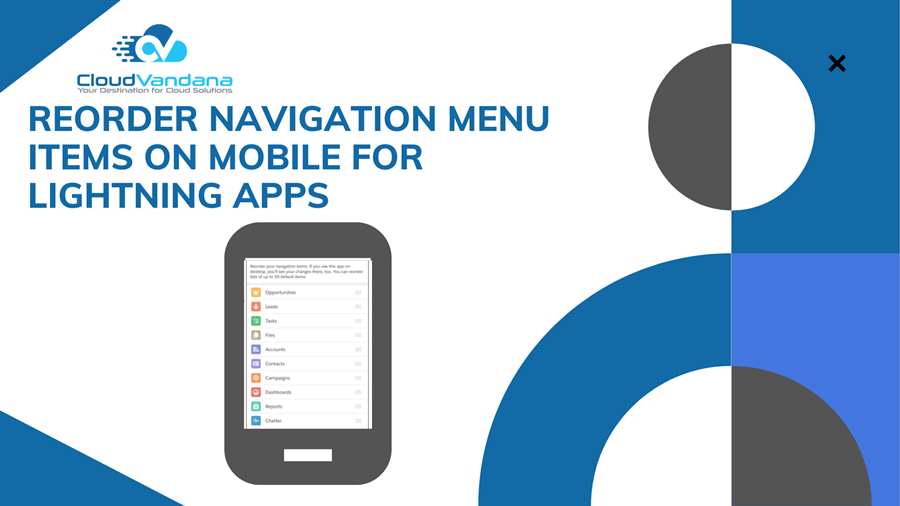
Learn how to customize and reorder your Salesforce mobile navigation menu in Lightning apps. Boost user productivity with personalized mobile navigation—no admin required. Why Mobile Navigation Is Strategic, Not Cosmetic Salesforce users are increasingly mobile-first. Whether they’re field reps closing deals on the go or executives reviewing dashboards in transit, the expectation is clear: access must be fast, intuitive, and customizable. One critical aspect of that experience is the navigation menu. Historically, navigation was admin-controlled and configured in desktop settings. But as of the July 2020 Salesforce update, users can now personalize their navigation menu and bar directly from the Salesforce mobile app—without admin assistance. This marks a significant shift in power and flexibility for end users. When navigation aligns with the way users actually work, productivity improves. Tapping into this capability is no longer optional—it’s a performance enabler. What Is the Salesforce Mobile Navigation Menu? In the Salesforce mobile app, the navigation menu is the vertical sidebar that provides access to all tabs, objects, and dashboards in the current Lightning App. It’s essentially a launchpad—where every tap either accelerates momentum or introduces friction. In tandem with this menu, the navigation bar sits at the bottom of the mobile screen and displays the top four menu items. These are always visible and instantly accessible, which makes their configuration highly impactful. The Evolution of Navigation: From Admin-Defined to User-Personalized Previously, any change to the navigation menu had to be made by Salesforce administrators via the Lightning App Builder. Users had no control over the order or visibility of items on mobile unless they made changes to the desktop version—if they had access at all. Now, any user in a Lightning app with personalization enabled can customize their own navigation experience from their mobile device. This includes: This shift places customization where it belongs—in the hands of the user. The Productivity Gains of Reordering Navigation Items This enhancement isn’t just a usability improvement; it’s a measurable productivity booster. Here’s why: 1. Faster Access to Critical Objects By putting the most-used objects—like Opportunities, Cases, or Dashboards—at the top of the menu, users eliminate unnecessary scrolling. And by surfacing those same items in the bottom nav bar, they’re literally one tap away at all times. 2. Better Mobile Alignment Mobile workflows are often different from desktop ones. A field rep may need quicker access to Maps, Appointments, or Assets, while a marketer might prioritize Campaigns and Dashboards. Personalized mobile menus reflect the reality of each user’s role. 3. Reduced Admin Dependency Users no longer need to wait for admins to restructure the app for mobile. Personalization empowers autonomy, while admins retain global control through default configurations. 4. Consistency Across Mobile Apps Even in mobile-only Lightning apps, users can take full control of how they navigate—without requiring admin edits from the desktop. Step-by-Step: How Users Can Reorder Navigation Items on Mobile For users who want to tailor their Salesforce mobile experience, the process is refreshingly simple. Step 1: Open the Salesforce Mobile App Launch the app and navigate to any Lightning App with personalization enabled. Step 2: Access the Navigation Menu Tap the hamburger icon in the lower-right corner of the screen to open the full menu. Step 3: Tap “Edit” Scroll to the bottom of the menu and tap the Edit icon. Step 4: Drag to Reorder Use the drag-and-drop handles to reorder menu items based on what you use most. 🔹 Pro Tip: The first four items in your menu appear in the bottom navigation bar—keep your most frequent actions there. Step 5: Save Your Changes Exit the Edit screen. Your menu is now live with the updated order. Step 6: Reset If Needed Want to go back to the default structure? Simply return to the Edit view and tap “Reset Navigation.” Admin Perspective: Setting Up Intelligent Defaults While users can personalize their menu, administrators still play a foundational role in shaping the experience. What Admins Control: ⚙️ Note: Personalization is enabled by default in most Lightning apps, but admins can disable it if standardization is critical for compliance or training. Where to Configure: Admins are the architects. Defaults matter—especially for new users or teams without a clear understanding of what they need. Real-World Use Case: Reps in the Field Imagine a sales rep traveling across multiple cities in a week. Their priorities on mobile are vastly different from what they need at their desk. Here’s a mobile-first menu they might create: Top 4 Menu Items (Navigation Bar): Secondary Items in the Menu: This structure aligns perfectly with their on-the-go needs—allowing them to log visits, view pipelines, and access directions within a single tap. When to Disable Personalization There are cases when it’s advisable to restrict user control: Admins can disable personalization from the Lightning App setup page. Always communicate with users before implementing restrictions. Best Practices for Mobile Navigation Success Key Differences: Admin vs. User Reordering Feature Admin User Default Tab Order ✅ ❌ Object Visibility ✅ (via permissions) ❌ Personalized Tab Order ❌ ✅ Reset to Default ❌ ✅ Admins define structure. Users define workflow. The two must complement each other—not compete. Limitations and Considerations Reordering Navigation—A Small Move with Big Impact While it may seem like a minor feature, the ability to reorder navigation items is a powerful tool in the Salesforce arsenal. It empowers users. It frees up admins. And most importantly, it adapts Salesforce to real-world workflows—making mobile CRM truly mobile-first. How CloudVandana Can Help You Optimize Lightning Navigation Navigating Salesforce effectively on mobile isn’t about pushing tabs around—it’s about engineering intuitive, role-based pathways that align with how your people actually work. That’s where CloudVandana comes in. We help businesses unlock the full potential of Lightning apps by: Whether you’re planning a Lightning rollout or refining an existing deployment, CloudVandana ensures your navigation structure is as dynamic as your business. 👉 Explore our Salesforce Services Request a Free Consultation YOU MIGHT ALSO LIKE
Custom Report Types for Price Book Entries
Unlock advanced pricing visibility in Salesforce with Custom Report Types for Price Book Entries. Learn how to build, configure, and scale pricing intelligence reports with expert insights from CloudVandana. Despite playing a pivotal role in Salesforce’s product and pricing architecture, Price Book Entries remain one of the most underutilized objects when it comes to reporting. Many teams focus on Opportunity or Product-based reports, ignoring the nuanced pricing strategy hidden within Price Books. This oversight creates blind spots in profitability analysis, pricing governance, and go-to-market alignment. Table of Contents The Strategic Importance of Reporting on Price Books Entries Understanding Price Book Entries What Are Price Book Entries? Relationship Between Products, Price Books, and Opportunities Native Reporting Limitations in Salesforce What Standard Reports Miss When Built-In Product Reports Fall Short The Power of Custom Report Types (CRTs) What Is a Custom Report Type? Benefits of Using CRTs for Price Book Entry Data Planning Your Custom Report Type Strategy Define the Business Use Case Identify the Reporting Audience and Purpose Object Relationships for Price Book Entries Understanding the Schema: Price Book Entry Object Key Fields to Include in Your CRT Creating a Custom Report Type Step-by-Step Instructions Choosing the Right Primary Object Sample CRT Configuration for Price Book Entries Base Object: Price Book Entry Joined Object: Product2 Joined Object: Price Book Optional: Opportunity Line Items Use Cases for Reporting on Price Book Entries Tracking Product Pricing Across Price Books Identifying Products Missing in Certain Price Books Audit and Compliance Reporting Adding Fields via Field Layouts Tailoring the Report Layout Including Custom Fields and Lookup Values Building Reports from the CRT Selecting the Custom Report Type in Report Builder Filtering, Grouping, and Summarizing Price Book Data Real-World Example: Multi-Region Pricing Oversight Scenario Setup Insights Gained Advanced Reporting Scenarios Cross-Object Filtering: Products by Account Segments Variance Analysis on List Prices Challenges and Workarounds Price Book Entry Doesn’t Support Report Subscriptions Workaround Using Joined Reports or Dashboards Integration with CPQ and Revenue Cloud When Price Book Entries Feed Into CPQ Logic Reporting for Pricing Strategy Alignment Field-Level Security and Report Visibility Ensuring Proper Access to Pricing Data Managing Sensitive Fields in Shared Reports Maintaining CRTs Over Time Version Control and Naming Conventions Auditing Field Changes and Dependencies Governance and Documentation Documenting Use Cases and Logic Establishing Report Ownership Tools to Accelerate CRT Development Schema Builder Third-Party Visual Modelers Conclusion YOU MIGHT ALSO LIKE The Strategic Importance of Reporting on Price Books Entries Price Books are not just static catalogs—they’re dynamic business tools. They define regional pricing, tiered discounts, and strategic segmentation. Without visibility into Price Book Entry data, organizations miss critical opportunities to analyze pricing consistency, detect anomalies, and drive margin intelligence. Understanding Price Book Entries What Are Price Book Entries? In Salesforce, a Price Book Entry represents the association between a product and its price within a specific Price Book. It’s a junction object connecting the Product2 and PriceBook objects, storing the list price and activation status. Relationship Between Products, Price Books, and Opportunities Products live in Product2. Price Books house collections of these products at defined prices. Opportunities pull from Price Books to add products to deals. This chain of relationships means any error or omission at the Price Book Entry level can ripple through forecasts, revenue recognition, and customer expectations. Native Reporting Limitations in Salesforce What Standard Reports Miss Out of the box, Salesforce does not offer a report type that lets users directly analyze the Price Book Entry object. You can report on Products, Opportunities, and Opportunities with Products—but the linkage to list price data across Price Books is absent. When Built-In Product Reports Fall Short A standard “Products” report can tell you which products are selling, but not how pricing differs across regions or price books. It won’t flag missing entries, inactive products, or inconsistent list prices—gaps that can lead to revenue leakage or compliance issues. The Power of Custom Report Types (CRTs) What Is a Custom Report Type? Custom Report Types in Salesforce allow you to define report data models beyond what’s available by default. They give you control over which objects to include, how they’re joined, and which fields are exposed to the reporting engine. Benefits of Using CRTs for Price Book Entry Data With CRTs, you gain granular visibility into pricing architecture. You can analyze which products appear in which price books, detect anomalies in list prices, and enforce pricing compliance across geographies or customer segments. Planning Your Custom Report Type Strategy Define the Business Use Case Before building anything, define your objective. Do you need to identify gaps in price book coverage? Validate pricing tiers? Measure product availability across partner catalogs? Anchoring your CRT in a use case ensures relevance and adoption. Identify the Reporting Audience and Purpose Sales ops? Pricing managers? Legal and compliance? Each stakeholder has unique needs. Understanding the audience helps determine the level of field detail, visibility controls, and UI complexity required. Object Relationships for Price Book Entries Understanding the Schema: Price Book Entry Object The Price Book Entry (API name: PricebookEntry) is a junction object linking Product2 and Pricebook2. Key fields include: Key Fields to Include in Your CRT Include fields that capture pricing insights: list price, active status, standard price usage, currency, product family, and price book name. This ensures your report supports both operational analysis and strategic review. Creating a Custom Report Type Step-by-Step Instructions Choosing the Right Primary Object Starting with Price Book Entry as the primary object is crucial. This allows you to surface each product-price book pair and layer on joined data from related records. Sample CRT Configuration for Price Book Entries Base Object: Price Book Entry This surfaces the junction data—unit price, active status, and product reference. Joined Object: Product2 Allows inclusion of product name, product code, product family, and custom product fields. Joined Object: Price Book Enables filtering and grouping by price book name, region, or pricing tier. Optional: Opportunity Line Items If needed, join to Opportunity Products to analyze how entries are used
Dynamic Forms in Salesforce
The Shift Toward Flexible UI in Salesforce In the modern enterprise landscape, users demand more than static interfaces—they expect agility, clarity, and contextual relevance. Salesforce, once bound by monolithic page layouts, has now embraced a transformational approach to user experience. Dynamic Forms redefine how information is displayed and consumed, enabling organizations to deliver precision-driven, role-specific layouts that scale with business complexity. What Are Dynamic Forms? A Definition Rooted in Admin Efficiency Dynamic Forms are Salesforce’s declarative toolset for transforming static layouts into intelligent, rule-based user interfaces. By allowing individual fields and sections to be placed directly on Lightning Record Pages, they empower admins to craft UI experiences that are data-aware, personalized, and operationally efficient. The Evolution from Page Layouts to Component-Based Design Historically, page layouts were built for universality, not specificity. They lacked agility and often forced admins to duplicate layouts for minor variations. Dynamic Forms dismantle this rigidity. Each field becomes an independent, configurable component. Admins can architect layouts that react to user input, business logic, and data values—in real time. Why Dynamic Forms Matter Contextual Data Entry for End Users Users should not be forced to interpret irrelevant fields. Dynamic Forms ensure that only pertinent data is visible, reducing interface fatigue and accelerating user actions. When forms adapt based on record criteria or user role, data quality improves and user confidence increases. Streamlining Admin Workflows Admin time is valuable. Maintaining dozens of redundant page layouts is inefficient and error-prone. Dynamic Forms collapse this overhead by allowing one layout to serve multiple use cases, dramatically simplifying configuration and governance. Key Features of Dynamic Forms Field-Level Visibility Rules Admins can apply logic at the field level to control visibility. Whether it’s based on a picklist value, user profile, or formula result, Dynamic Forms enable true precision targeting without writing a single line of code. Section-Based Configuration Beyond fields, entire sections of a record page can be dynamically displayed or hidden. This promotes logical grouping, task-based navigation, and seamless user experiences that adjust fluidly to business processes. Drag-and-Drop Layout Management Fields and sections can be positioned visually within Lightning App Builder using drag-and-drop functionality. It’s a declarative UX tool that enables rapid iteration, previewing, and deployment without developer intervention. How Dynamic Forms Work Behind the Scenes: The Lightning App Builder The Lightning App Builder becomes the design console. Admins select “Field Section” components, assign fields, and configure logic—all within a point-and-click interface. Each component operates independently, offering unparalleled layout control. Metadata-Driven Architecture Every Dynamic Form configuration is stored as metadata. This allows for environment portability, version control, and seamless deployment through DevOps pipelines. Changes are non-disruptive and inherently aligned with Salesforce’s low-code ethos. Dynamic Forms vs. Traditional Page Layouts Flexibility and Control Traditional page layouts require duplication to accommodate different roles or processes. Dynamic Forms enable one intelligent layout to flex and morph based on rule sets, dramatically enhancing operational control. Elimination of Redundant Layouts Rather than managing dozens of nearly identical layouts, organizations can converge on a single dynamic design. The result is better manageability, improved performance, and a clearer UI strategy. Supported Objects and Limitations Custom Objects Dynamic Forms are fully supported on all custom objects. This opens the door for tailored, responsive UI on bespoke data models, often central to enterprise applications. Standard Object Availability and Roadmap Support for standard objects is expanding. As of recent releases, Account, Contact, Opportunity, and Case have gained compatibility. Salesforce continues to iterate, with full support for all core standard objects on the near-term roadmap. Activating Dynamic Forms in Salesforce Step-by-Step Enablement Admins enable Dynamic Forms through Lightning App Builder. After selecting a record page, they drag a Field Section component onto the layout, populate it with fields, apply visibility logic, then save and activate the page. No Apex. No deployments. Immediate impact. Assigning Forms via App Builder Admins can assign Lightning Record Pages based on app, profile, or record type. This allows for surgical deployment of dynamic interfaces tailored to business unit, geography, or operational context. Using Visibility Rules for Smart Form Logic Conditional Field Display Fields appear based on real-time logic. Whether triggered by user interaction, record status, or custom conditions, this functionality enables intelligent form behavior that mirrors real-world workflows. Creating Role- or Profile-Specific Experiences Rather than building separate layouts, visibility rules allow one record page to adapt to different users. Executives may see summary-level data, while frontline users access granular fields—within the same page framework. Use Cases for Dynamic Forms Sales Use Case: Deal Stage-Based Visibility At early stages, display fields that support discovery. As the opportunity matures, reveal pricing, discounts, and contract data. This reduces user confusion and aligns data capture with the sales journey. Service Use Case: Case Type-Driven Fields For technical cases, expose diagnostic fields. For billing cases, show financial context. This reduces resolution times by ensuring agents only see the fields relevant to the case type they’re handling. HR Use Case: Onboarding Form Simplification During onboarding, fields are revealed progressively—job details first, then benefits, then logistics. This phased approach reduces cognitive load and ensures data is entered in a structured, logical sequence. Best Practices for Building with Dynamic Forms Start with Sections, Then Fields A top-down design approach ensures layouts are organized and maintainable. Begin with well-labeled sections before populating fields. This enforces clarity and promotes a scalable design strategy. Naming Conventions and Governance Visibility rules and field sections must follow consistent naming standards. Prefixes, suffixes, and logical grouping are essential for maintenance in multi-admin environments. Testing Across Profiles and Devices Comprehensive testing is non-negotiable. Admins must validate form behavior across user roles, devices, and browsers to ensure consistency, security, and functional correctness. Performance Considerations Rendering Time and Page Load Speed Overuse of visibility rules may impact rendering times, especially on heavily customized pages. Use optimization techniques, like conditional grouping, to minimize performance drag. Impact on Mobile Experiences On mobile, space is a premium. Dynamic Forms must be designed for compact visibility and responsive formatting. Prioritize essential fields and use collapsible sections to
New Email Insights for Einstein Activity Capture

In today’s hyper-connected, digital-first marketplace, communication is currency. Emails don’t just carry messages—they carry intent, hesitation, momentum, and decision signals. Yet for too long, these signals have gone unnoticed, buried in inboxes and lost in unstructured data. That’s changing. Salesforce’s Einstein Activity Capture now unveils a new layer of intelligence: real-time email insights that transform how sellers understand buyer engagement. Table of Contents Understanding Einstein Activity Capture (EAC) What Is Einstein Activity Capture? The Evolution of Email Tracking in Salesforce The Rise of Email Insights in Sales Cloud The Shift Toward Deeper Engagement Analytics From Activity Logging to Strategic Intelligence What’s New in Email Insights Real-Time Visibility into Email Engagement Insight Categories: Opens, Replies, Clicks, Timing Contact-Level vs. Org-Level Insights Where Email Insights Live in Salesforce Viewing Insights in the Activity Timeline Insights in the Salesforce Mobile App The Intelligence Behind the Curtain How AI Parses Engagement Signals Using Machine Learning to Identify Sales-Ready Signals Why This Matters for Sales Teams Prioritizing Leads Based on Email Interactions Identifying Buying Signals with Precision Impact on Sales Managers and Leaders Coaching Reps with Data, Not Guesswork Team-Level Performance Trends in Communication The Role of Email Insights in Forecasting Connecting Communication to Pipeline Confidence From Lagging Metrics to Leading Indicators Email Insights vs. Traditional Email Tracking A New Standard for Relevance and Context No More Manual Logging or Shallow Metrics Security and Privacy Considerations What Data is Captured (and What’s Not) Admin Controls and Permissions Customization and Configuration Options Turning on Email Insights in Your Org Configuring Filters and Engagement Rules Integrations and Ecosystem Compatibility Email Insights and Marketing Cloud Compatibility with Google Workspace and Microsoft 365 The Role of Engagement Metrics in Sales Cadences Fine-Tuning Outreach Based on Real-Time Feedback Adapting Cadence Strategy with Smart Data Examples of High-Value Email Insights in Action Use Case: Enterprise Sales Use Case: SMB B2B Sales Use Case: Customer Success and Renewal Teams How Email Insights Influence Buyer Journeys Personalizing Touchpoints Based on Past Interactions Using Engagement to Map the Buying Committee Limitations and Caveats When Insights Might Mislead Avoiding Over-Reliance on Digital Signals Future Roadmap for Email Intelligence Predictive Engagement Scoring Integration with Voice and Chat Data Best Practices for Leveraging Email Insights Training Reps to Interpret Signals Aligning Insights with CRM Strategy Frequently Asked Questions-Einstein Activity Capture Conclusion Elevate Engagement Intelligence with CloudVandana YOU MIGHT ALSO LIKE Understanding Einstein Activity Capture (EAC) What Is Einstein Activity Capture? Einstein Activity Capture is Salesforce’s answer to the age-old question: “What are my reps actually doing?” By passively syncing emails and calendar events between your email provider and Salesforce, Einstein Activity Capture automates activity logging. No more tedious copy-pasting or retroactive notes. It’s a seamless conduit between communication and CRM visibility. The Evolution of Email Tracking in Salesforce Email tracking once meant guessing if someone opened a message or clicked a link. It lacked depth. Einstein Activity Capture represents the next stage—an evolved system that doesn’t just record activity but surfaces meaningful interaction patterns. Think less about “if it was opened” and more about “what happened next—and what it means.” The Rise of Email Insights in Sales Cloud The Shift Toward Deeper Engagement Analytics Sales teams aren’t looking for more data—they’re looking for sharper insights. Email insights within Einstein Activity Capture elevate passive logging into dynamic analytics. It’s not enough to know who replied. Now, it’s about understanding who’s engaged, when they’re most active, and how they respond over time. From Activity Logging to Strategic Intelligence The shift is subtle but seismic. Sales tools have moved from documenting actions to interpreting behavior. Email insights now bridge the chasm between conversation and conversion, offering sales professionals the clarity to move faster, smarter, and more confidently. What’s New in Email Insights Real-Time Visibility into Email Engagement You send an email. Within seconds, Salesforce tells you if it’s been opened, replied to, or clicked. No waiting, no wondering. This real-time loop tightens the feedback cycle and empowers reps to act with surgical precision. Insight Categories: Opens, Replies, Clicks, Timing The new Email Insights package includes granular metrics: Opens: How many times? When? Replies: Who replied and how fast? Clicks: Which links triggered action? Timing: Engagement by time of day and week.These micro-interactions map the buyer’s digital body language. Contact-Level vs. Org-Level Insights Beyond individuals, Email Insights can bubble up engagement across an entire account. Spotting trends within a buying group allows sales teams to detect account-wide readiness or friction. Where Email Insights Live in Salesforce Viewing Insights in the Activity Timeline Within each contact, opportunity, or account, the Activity Timeline becomes a command center. Email interactions are visually stacked with indicators, providing a chronological map of responsiveness and intent. Insights in the Salesforce Mobile App Road warriors rejoice. Email engagement data is just as accessible on mobile, allowing for informed follow-ups while you’re between meetings, in transit, or on the go. The Intelligence Behind the Curtain How AI Parses Engagement Signals Behind the scenes, Einstein Activity Capture utilizes natural language processing (NLP) and behavioral analysis to understand not only what was said, but also how and when it was responded to. It learns patterns of interest, indifference, and urgency. Using Machine Learning to Identify Sales-Ready Signals Einstein Activity Capture learns which signals typically precede a closed deal—rapid replies, email forwarding, repeated link clicks—and flags similar behavior across your pipeline. It’s pattern recognition with purpose. Why This Matters for Sales Teams Prioritizing Leads Based on Email Interactions No more chasing silent leads while warm ones go stale. With actionable insights, reps can rank their day by real-time buyer behavior—not guesswork. Identifying Buying Signals with Precision Email isn’t just outreach—it’s feedback. When buyers click certain assets or reply at certain times, they’re revealing their stage in the journey. Reps who know how to read these clues gain a powerful edge. Impact on Sales Managers and Leaders Coaching Reps with Data, Not Guesswork Sales managers now see not just activity volume but engagement quality. Who’s sending effective emails? Who’s being ignored? Coaching can now be tailored,
Use Quick Actions to Assign Tasks to Queues
Easily assign tasks to queues in Salesforce using Quick Actions. Boost collaboration, speed up workflows, and streamline task ownership across teams with this expert guide from CloudVandana. In today’s fast-paced business landscape, agility and collaboration are critical. Whether it’s a sales team pursuing leads, a support team solving customer issues, or recruiters sourcing top talent—efficiency at every handoff makes the difference between average outcomes and exceptional success. One of Salesforce’s most powerful, yet underutilized features for optimizing workflow is the Task Queue—and with the introduction of Quick Actions for Task Assignment, managing shared responsibilities has never been easier. In this authoritative guide from CloudVandana, we dive deep into how Task Queues, paired with Quick Actions, can transform the way your teams manage workload, reduce bottlenecks, and deliver high-impact results across departments. Table of Contents Assign Tasks to Queues in Salesforce Why Quick Actions Matter for Task Assignment Benefits of Using Assign Tasks to Queues Across Teams Sales Teams: Faster Opportunity Qualification Service Teams: Accelerated Case Resolution Recruitment Teams: Efficient Candidate Sourcing Setting Up Task Queues: The Essentials Configuring Quick Actions for Queue Assignment Step-by-Step Guide: Real-World Use Cases and ROI Impact Example 1: Streamlining Partner Onboarding Example 2: Managing Cross-Functional Project Work Example 3: Escalation Management in Call Centers Common Pitfalls and How to Avoid Them Tips to Drive Adoption and Efficiency Final Thoughts from CloudVandana Frequently Asked Questions (FAQs) YOU MIGHT ALSO LIKE Assign Tasks to Queues in Salesforce Assign Tasks to Queues is a centralized, shared workstream where tasks are not assigned to a specific individual but to a group of users. Any member of the queue can take ownership of a task and act on it. This model is ideal for high-volume, collaborative environments where the first available or most qualified person should pick up the task without the administrative delay of reassignment. Originally designed to manage Leads and Cases, Salesforce now supports Task assignment to Queues, enabling a more dynamic and responsive approach to managing team-based workloads. Why Quick Actions Matter for Task Assignment Quick Actions are pre-configured buttons or forms that streamline common workflows directly from a record page or the utility bar. With the latest enhancements, Salesforce allows admins to configure Quick Actions that assign tasks to queues—making the process instant, standardized, and scalable. This means sales reps, service agents, or recruiters no longer have to navigate multiple screens or request manual assignment. They can assign tasks to the appropriate queue in just one click, saving valuable time and increasing responsiveness. Benefits of Using Assign Tasks to Queues Across Teams Assigning Tasks to Queues is more than just a routing mechanism—it’s an enabler of collaborative efficiency. Here’s how different teams can benefit: Sales Teams: Faster Opportunity Qualification Imagine a high-performing sales team where inbound leads are routed into a queue. Any available sales rep can claim a task to qualify the lead, follow up on an email, or complete discovery calls. The pipeline keeps moving without hold-ups or dependency on a manager to reassign every task. Service Teams: Accelerated Case Resolution Customer service reps often encounter issues that require expert knowledge. With task queues, a support agent can escalate a case-related task to a queue of subject matter experts. The next available expert picks it up, resolves the blocker, and the original agent continues to provide seamless support to the customer. Recruitment Teams: Efficient Candidate Sourcing In HR or recruitment operations, especially those managing a high volume of job requisitions, task queues can centralize sourcing, follow-ups, and candidate assessments. As new job openings arise, recruiters share a queue where they pick up tasks to contact candidates, arrange interviews, or initiate background checks. Setting Up Task Queues: The Essentials Before enabling quick actions, let’s revisit how to set up Task Queues correctly: Configuring Quick Actions for Queue Assignment Salesforce Admins can create Quick Actions that assign tasks to queues in a consistent and controlled manner. Step-by-Step Guide: You can also create Global Actions that allow users to create tasks and assign them to queues from any location, including the utility bar or the mobile app. Real-World Use Cases and ROI Impact Let’s take a closer look at how businesses are using Task Queues in practice: Example 1: Streamlining Partner Onboarding A tech company uses a task queue to manage onboarding new partners. The Partner Success team shares the queue and takes ownership of tasks such as contract reviews, product walkthroughs, or provisioning software licenses—accelerating time-to-activation. Example 2: Managing Cross-Functional Project Work A SaaS enterprise creates a queue for cross-functional collaboration on product feature rollouts. Tasks related to compliance checks, user testing, and technical documentation are assigned to a shared queue across legal, QA, and tech writing teams. This reduces miscommunication and centralizes accountability. Example 3: Escalation Management in Call Centers In a high-volume call center, when L1 agents escalate issues, they use a quick action to assign the task to an L2 escalation queue. The next available senior agent picks up the task, reducing time to resolution and improving SLAs. Common Pitfalls and How to Avoid Them While Task Queues are powerful, they need thoughtful implementation: Tips to Drive Adoption and Efficiency Final Thoughts from CloudVandana At CloudVandana, we believe high-performing teams are built on optimized processes and scalable collaboration. Task Queues—combined with Quick Actions—create an environment where teams can move faster, eliminate friction, and deliver consistent results. Whether you’re streamlining lead qualification, accelerating case resolution, or improving hiring velocity, the ability to assign and manage work in a shared queue unlocks a new level of productivity. Ready to enable Task Queues and build high-performing workflows in Salesforce?Contact CloudVandana to get started with tailored Salesforce automation and configuration. Frequently Asked Questions (FAQs) 1. Can tasks be assigned to multiple queues at once in Salesforce? No, a task can only be assigned to one queue at a time. However, you can create separate queues for different teams or purposes and use automation to route tasks based on criteria. 2. Are Task Queues available in Salesforce
View Lightning Records Using Full View
Master how to view Lightning Records using Full View in Salesforce. This guide explores setup, customization, and best practices for displaying complete record data in a scrollable, user-friendly format. Salesforce Lightning Experience is engineered to enhance user productivity through a modern, component-based interface. Among its layout options, the Full View layout offers a straightforward, scroll-based format designed for users who prefer complete visibility of a record in a single pane. As more businesses migrate to Lightning from Classic, View Lightning Records using full view acts as a bridge—offering a traditional layout with the advantages of Lightning’s dynamic components. In this comprehensive guide, we’ll explore what Full View is, how it differs from other layouts, when it’s best used, how to enable and tailor it to specific user needs, and how it supports various industry workflows. We’ll also cover best practices, performance tips, and strategies for encouraging adoption across your organization. Table of Contents View Lightning Records Using Full View What Is Full View in Salesforce Lightning? Comparing Lightning Records Full View and Grouped View in Detail Full View: A Linear Layout Grouped View: A Modular Layout Choosing Between the Two Use Cases Where Lightning Records Full View Shines Complex Case Management Regulatory and Audit Workflows Internal Operations and Admin Work Training and Learning Environments How to Enable Lightning Records Full View in Lightning App Builder Designing Effective Full View Layouts Key Design Considerations: Lightning Records Full View Across Industries Healthcare Financial Services Education Legal Firms Nonprofits Optimizing Performance in Full View Layouts Encouraging User Adoption View Lightning Records Using Full View-Final Thoughts Frequently Asked Questions (FAQs) YOU MIGHT ALSO LIKE View Lightning Records Using Full View What Is Full View in Salesforce Lightning? Full View is a record page layout option in Salesforce Lightning Experience that organizes all record-related information—including record details, related lists, and custom components—into one single scrollable column. Unlike the Grouped View, which divides the page into tabs and collapsible sections, Full View gives users a continuous, top-down snapshot of the record. This format is ideal for users who want to avoid the extra clicks and hidden data that come with tabbed navigation. It provides a holistic view of every component on the record page, minimizing interruptions and reducing cognitive load. Comparing Lightning Records Full View and Grouped View in Detail Full View: A Linear Layout Full View caters to users who prefer a consolidated approach to data consumption. When enabled, every component—Details, Related Lists, Activities, Chatter, and more—appears stacked vertically. There’s no need to click through tabs or expand sections. This is especially beneficial for users working with large datasets or reviewing records line by line. Grouped View: A Modular Layout Grouped View organizes the record page into multiple tabs (such as Details, Related, Activity), allowing users to drill into specific sections. This approach works well for sales teams and service reps who interact with only a portion of the record at any given time. It’s optimized for quick scanning and light data input but can hide useful context from users who need the full picture. Choosing Between the Two The choice between Full View and Grouped View depends on user preference, task complexity, and industry requirements. Full View offers more transparency and context, while Grouped View prioritizes speed and focused interaction. Use Cases Where Lightning Records Full View Shines Organizations often overlook how layout can impact workflow efficiency. Here are specific scenarios where Full View provides a clear advantage: Complex Case Management For service agents dealing with detailed case histories, Full View ensures that all prior communications, notes, and related activities are visible in one go. This makes it easier to provide personalized support and reduces resolution times. Regulatory and Audit Workflows In industries like finance and healthcare, where audits require complete visibility into client or patient records, Full View removes the risk of overlooking data hidden in collapsed tabs. Auditors and compliance officers benefit from seeing every interaction, field update, and related object in a single flow. Internal Operations and Admin Work Full View supports detailed workflows such as onboarding checklists, facility management, or internal ticketing. Admin users can input data, verify records, and switch between sections seamlessly without constant context switching. Training and Learning Environments New Salesforce users can feel overwhelmed by nested tabs. Full View offers a more intuitive way to explore object relationships and data structures, making it an ideal tool for onboarding and workshops. How to Enable Lightning Records Full View in Lightning App Builder Salesforce administrators can enable Full View by configuring record pages through the Lightning App Builder. Here’s a walkthrough: This layout is automatically applied when users access the record, ensuring consistency across devices. Designing Effective Full View Layouts Customization is key to getting the most out of Lightning Records Full View. The design should balance visibility with performance, helping users get information quickly without overwhelming them. Key Design Considerations: Lightning Records Full View Across Industries Salesforce is used in a wide array of industries, and each has unique needs that Full View can address effectively. Healthcare Hospitals and clinics track a wide range of patient data: visits, prescriptions, procedures, insurance, and more. Full View ensures doctors and administrative staff have access to all details in one scroll—eliminating toggling that can delay care. Financial Services Loan processors and wealth managers need a holistic view of applications, customer profiles, supporting documentation, and interaction history. Full View ensures no piece of information is missed. Education Admissions officers reviewing student applications can use Full View to evaluate transcripts, recommendations, interviews, and previous correspondence without missing key data. Legal Firms Legal records involve extensive documentation. Lightning Records Full View is ideal for displaying contracts, client interactions, timelines, and supporting materials in one location. Nonprofits Nonprofit staff managing grants, donors, or outreach campaigns benefit from having all notes, donation history, and follow-up activities displayed seamlessly. Optimizing Performance in Full View Layouts Because Full View loads all components at once, it’s important to design with performance in mind. Here’s how to keep
Display List as Split View for Standard Navigation in Salesforce

Do you often find yourself working through multiple records in a list? Salesforce continues to enhance its Lightning Experience to meet the evolving needs of today’s digital workplace. Among its many innovations, the Split View layout stands out as a game-changer for improving productivity and data accessibility. Designed with efficiency in mind, Split View allows users to multitask like never before—offering side-by-side access to record lists and detailed views within a single screen. In this expanded guide, we’ll break down everything you need to know about using Split View in Salesforce Standard Navigation—from how it works and when to use it, to advanced configuration tips, industry-specific use cases, and common troubleshooting scenarios. What Is Split View in Salesforce Lightning Experience? Split View is a dynamic dual-pane interface available in Salesforce’s Lightning Experience that enables users to interact with both a list of records and individual record details simultaneously. The left pane displays the list view, while the right pane shows the detail of a selected record. This eliminates the repetitive back-and-forth clicking between list pages and detail views, streamlining the navigation experience. Key Characteristics of Split View: Split View supports objects like Leads, Opportunities, Cases, Tasks, Accounts, and custom objects, making it a versatile solution for sales, support, and administrative teams alike. Why and When to Use Split View 1. High-Volume Record Handling If your daily workflow involves reviewing or processing dozens of records—like tasks, cases, or opportunities—Split View helps you move swiftly from one record to the next without breaking focus. 2. Lead Qualification & Follow-up Sales development reps can instantly scroll through leads, update statuses, add notes, and log interactions. This accelerates call blitzes and follow-up sequences, boosting SDR productivity. 3. Case Resolution and Customer Support Service agents managing support tickets can resolve issues faster when they can keep the queue in view while handling individual cases. 4. Task Management and Personal Organization Whether you’re juggling customer meetings or internal to-dos, Split View lets you prioritize, reassign, and track progress—streamlining your calendar and task list. 5. Managerial Oversight Sales managers reviewing pipelines or open activities can switch between reps’ records without reloading dashboards, making coaching sessions more interactive and efficient. How to Enable and Access Split View in Standard Navigation Enabling Split View requires no special permissions and can be done directly by any user working in Salesforce Lightning with Standard Navigation. Step-by-Step Activation: Salesforce will remember your last selected view for that object if you pin it. This means you can maintain a consistent experience across sessions. Industry Use Cases: Split View in Action Healthcare Hospital administrators or patient care coordinators can move through appointment logs, lab records, or follow-up cases efficiently—keeping critical patient data within reach. Financial Services Relationship managers evaluating investment portfolios or loan applications benefit from having customer lists and account insights visible side-by-side. Manufacturing Sales engineers can check inventory records and update customer specifications in real-time, eliminating delays in the quoting process. Education Admissions teams can handle applicant reviews or student support tickets more efficiently, maintaining a clear view of active records and detailed submissions. Nonprofits Development officers tracking donor outreach can manage contact histories and pledge data quickly, ensuring timely follow-ups. Advanced Tips for Maximizing Productivity Pin Your Favorite List View By pinning your preferred list (e.g., “My Open Opportunities”), you ensure Salesforce loads the right data in Split View every time you log in. Resize and Customize Layouts Adjust pane widths to improve visibility. Compact Layouts allow admins to highlight critical fields like Stage, Owner, or Close Date for quick scanning. Enable Inline Editing Where supported, make quick changes directly from the list pane without even opening the full record. Train Teams to Use View Modes Intentionally Educate users on when to use Table View (for inline editing or sorting) vs. Split View (for multitasking or rapid review). Streamline Page Performance Remove unnecessary components or related lists from record pages to speed up loading and enhance responsiveness. For Salesforce Admins: Configuration Strategies Curate List Views Create strategic list views that align with roles (e.g., “Urgent Support Cases” for service agents). Use filters to reduce clutter and guide user focus. Set Navigation Style Ensure your apps are configured for Standard Navigation (not Console) to support Split View usage. Optimize Lightning Pages Use dynamic visibility rules and tabbed components to simplify record views. Limit the number of related lists to ensure fast page load. Use Compact Layouts for Impact Carefully prioritize the most useful fields in Compact Layouts, making critical data immediately visible within Split View. Incorporate User Feedback Add Split View to training sessions and solicit feedback for ongoing UI optimization. Regular enhancements help drive adoption. Accessibility & Performance Considerations Split View supports accessibility standards and can be used effectively with keyboard navigation. For optimal performance: Common Issues and Troubleshooting Tips Split View Not Appearing Ensure Lightning Experience is enabled and that the user is not in a console-style app. Split View works only with Standard Navigation. Blank Detail Pane Verify that Lightning record pages are active and assigned. Check for missing components or custom overrides. Laggy Navigation Use fewer tabs or related lists on record pages. Clear browser cache or refresh to improve responsiveness. View Doesn’t Persist Ensure users pin their desired view. Without pinning, Salesforce defaults to the last-used system view. Final Thoughts Split View is more than just a user interface tweak—it’s a strategic enhancement to Salesforce Lightning that empowers teams to stay organized, move faster, and focus on what matters. From lead qualification to customer service, task management to record audits, Split View unlocks a more seamless and intelligent way to work. When deployed effectively, it minimizes context-switching, boosts user satisfaction, and improves data hygiene across the board. As organizations continue to demand more from their CRM investments, features like Split View demonstrate the value of thoughtful design and continuous innovation. Looking to customize your Salesforce experience and train your teams on Split View and beyond? CloudVandana can help. Contact us today to unlock the full power
The Ultimate Checklist for Choosing the Perfect Consultant

Hiring the right consultant can make or break your project, transformation initiative, or long-term strategic goals. Whether you’re implementing a new CRM like Salesforce, reengineering business processes, scaling marketing operations, or optimizing IT infrastructure, a seasoned consultant can offer you the clarity, execution support, and expertise you need. But with thousands of professionals and firms out there, how do you identify the right consultant for your business? This ultimate checklist will walk you through all the essential criteria, questions, and red flags to consider before choosing a consultant. By the end of this guide, you’ll have a structured framework to vet candidates confidently and find a partner that fits your company like a glove. 1. Clarify Your Needs First Before engaging any external expert, it’s vital to begin with internal clarity. Without a solid understanding of what you need, any consultant—no matter how capable—will struggle to deliver meaningful results. Ask yourself: What problem are we trying to solve? Whether it’s inefficient internal workflows, lack of data visibility, or disjointed sales processes, define the challenge clearly. Be precise about expected outcomes: Are you aiming for short-term fixes or long-term transformation? Equally important is understanding your internal capacity. Do you have the bandwidth to support a hands-on consultant, or will they need to drive the project independently? Timeline and budget also play a decisive role. With these insights in hand, you can write a simple internal project brief outlining your goals, stakeholders, constraints, and success metrics—this will serve as a compass when evaluating potential partners. 2. Prioritize Relevant Experience Over Prestige Prestige and name recognition are tempting, but they rarely guarantee results. A boutique consultant with deep domain experience is often more effective than a big firm unfamiliar with your niche. Evaluate potential consultants based on the relevance of their past work. Have they supported similar industries, such as manufacturing, financial services, or SaaS? Do they understand your company size and structure—startup, mid-market, or enterprise? Beyond industry fit, look for functional and technical expertise. If you’re implementing Salesforce, have they led successful Salesforce rollouts or optimizations before? Familiarity with your tech stack is crucial. Ask for detailed case studies, past client references, or even short presentations of recent projects that demonstrate alignment with your goals. 3. Validate Certifications and Technical Mastery While experience is essential, certifications can provide additional assurance—especially in technical domains. For Salesforce projects, certifications like Salesforce Certified Administrator, Sales Cloud Consultant, or Platform Developer serve as concrete indicators of knowledge. Likewise, PMP, ScrumMaster, or Agile certifications validate project management expertise, while credentials like CPA or CFA may be relevant for finance-related consulting. But don’t stop at badges. Inquire about the tools they use for project tracking, documentation, and communication. Ask how often they pursue continuing education or recertification. True professionals are always learning and adapting. Finally, explore how they approach learning your internal systems. Their onboarding process should demonstrate thoroughness and respect for your unique environment. 4. Judge Communication as Much as Competence Exceptional consultants are not just smart—they’re great communicators. They should be able to articulate complex topics with clarity, listen intently, and adapt their language depending on the audience. During early conversations, assess how they communicate. Do they ask thoughtful questions? Do they listen more than they speak? Can they simplify jargon for stakeholders who aren’t technical? Communication style is especially crucial for projects with executive visibility or cross-functional teams. Discuss how they plan to keep your team updated. Do they prefer Slack, Zoom, email, or project dashboards? Also probe how they handle scope changes, delays, or misunderstandings. A consultant’s ability to maintain transparency and foster open dialogue often matters more than their technical skill. 5. Evaluate Cultural and Ethical Alignment A consultant may not be a full-time team member, but cultural fit still matters. Misaligned values can create friction, delay progress, and lower morale. Explore whether the consultant understands your company’s mission, pace, and work ethic. Are they flexible, or do they impose rigid processes? Do they value collaboration, or operate in silos? Ask how they’ve embedded with teams in the past. Request references who can speak not just to their deliverables, but to their working style and integrity. You’re not just hiring talent—you’re choosing a temporary leader, and leadership must be earned, not assumed. 6. Understand Their Framework and Methodology Top-tier consultants bring structure to chaos. Ask them to walk you through their typical process—from discovery to delivery. Do they follow a defined methodology or adapt their approach based on your specific needs? Can they describe each phase clearly: initial assessment, strategic planning, implementation, and performance review? Watch out for consultants who operate without process. Lack of structure is often a red flag for inconsistency. Great consultants will be methodical, yet flexible. They’ll respect your workflows while improving them, and they’ll bring in documentation tools, project plans, and best practices to keep everything on track. 7. Demand Social Proof Through References and Reviews Consultants live and die by reputation. Ask for two to three references from recent engagements, ideally in similar industries or project types. When you speak to those references, go beyond surface-level questions. Ask about the project context, what went well, what could have gone better, and how issues were resolved. In addition to references, research public reviews. Platforms like Clutch, Upwork, or G2 often provide verified testimonials for both freelancers and firms. LinkedIn recommendations can also offer valuable context. Pay attention to patterns—do most clients praise their communication, technical depth, or reliability? That’s where their strengths likely lie. 8. Confirm Their Bandwidth and Focus Even the most capable consultant can become a liability if they’re overcommitted. Ask directly about their current workload and how many clients they are supporting. Will you be working with them personally or with a team? What percentage of their time will be allocated to your project? Clarify what happens if there’s a scheduling conflict, team emergency, or delay in your end of the timeline. Their answer should demonstrate not just availability, but professionalism and contingency planning.